Turn rough meeting notes into a summary, a follow-up email and more
Published 28 October 2026
During a meeting you don’t have time to write nicely. You write fragments: names, dates, question marks, arrows. That’s fine. Those rough notes already hold everything that matters. With AI you can turn them into whatever you need afterwards, without anything recording the call.
This guide shows the whole flow with one real example: a client kickoff call that becomes a meeting summary, a follow-up email and a Slack update for the team.
Step 1: Take rough notes during the call
Don’t try to write full sentences. Capture outcomes, not dialogue:
- Decisions: “launch 15 March, hard deadline”
- Actions, with a name: “Tom: check Square API access”
- Open questions: “Stripe or Square?”
- Dates and numbers, exactly as they’re said
Here’s what that looks like after a 30-minute call:
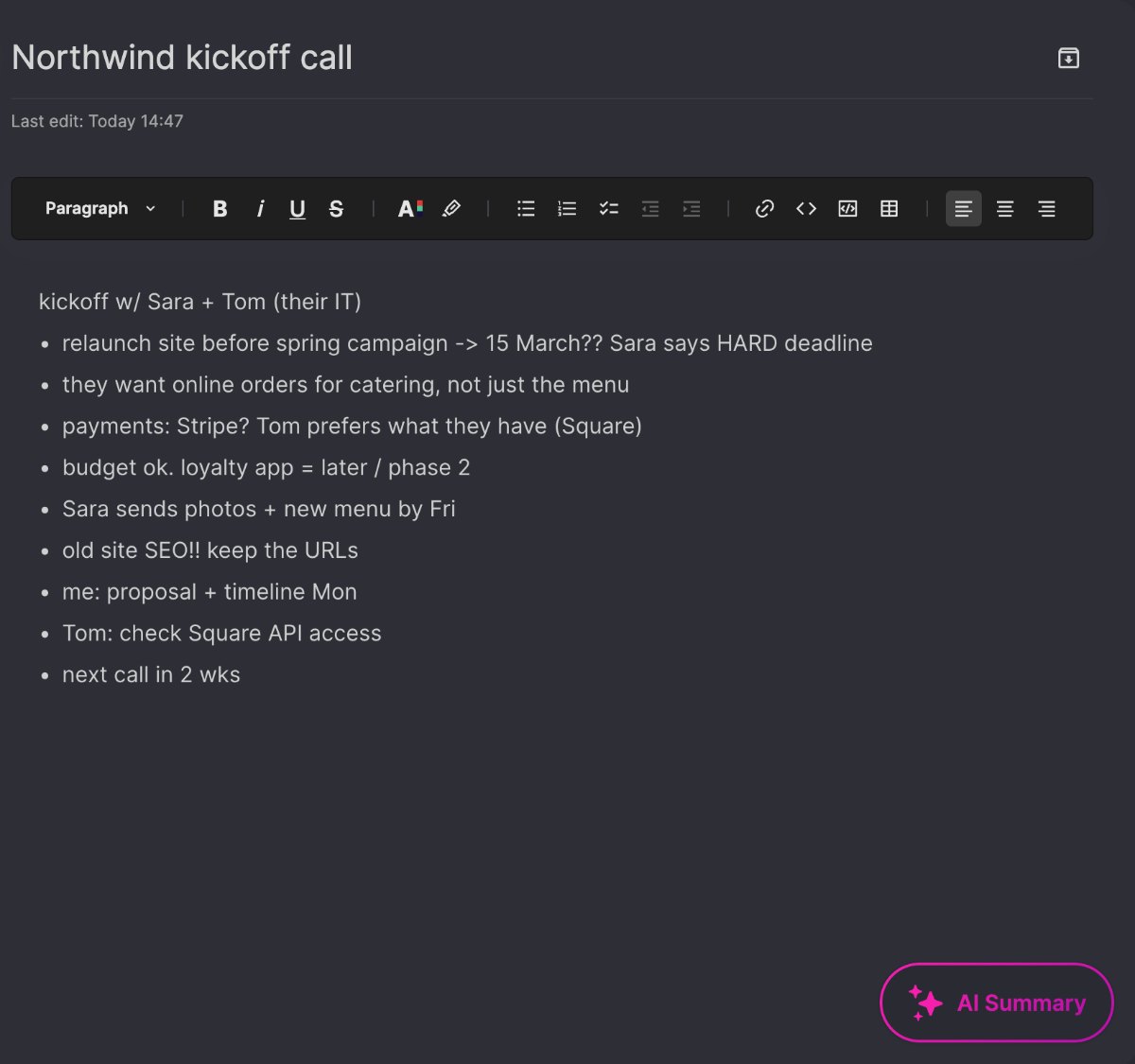
Messy is fine. What matters is that the facts are there.
Step 2: Turn them into a meeting summary
After the call, press AI Summary, pick the Meeting Summary template and press Generate.
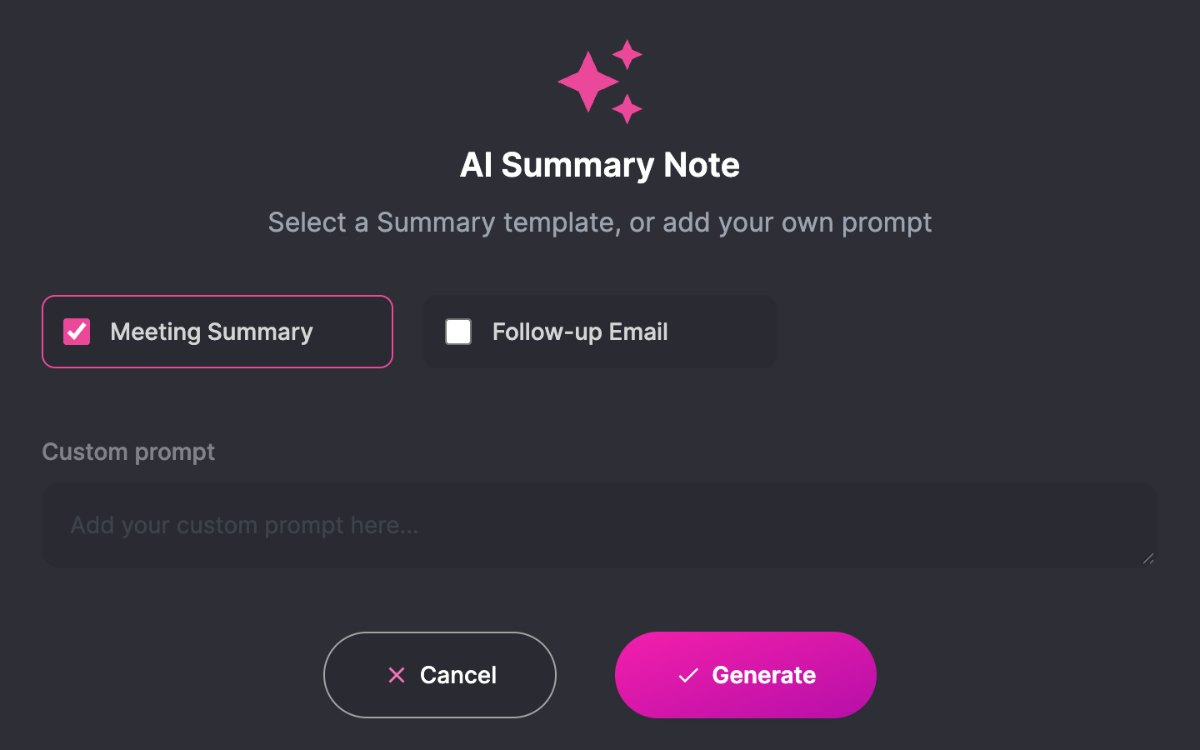
A few seconds later the summary opens in its own tab, next to your original notes. Your notes stay exactly as you wrote them.
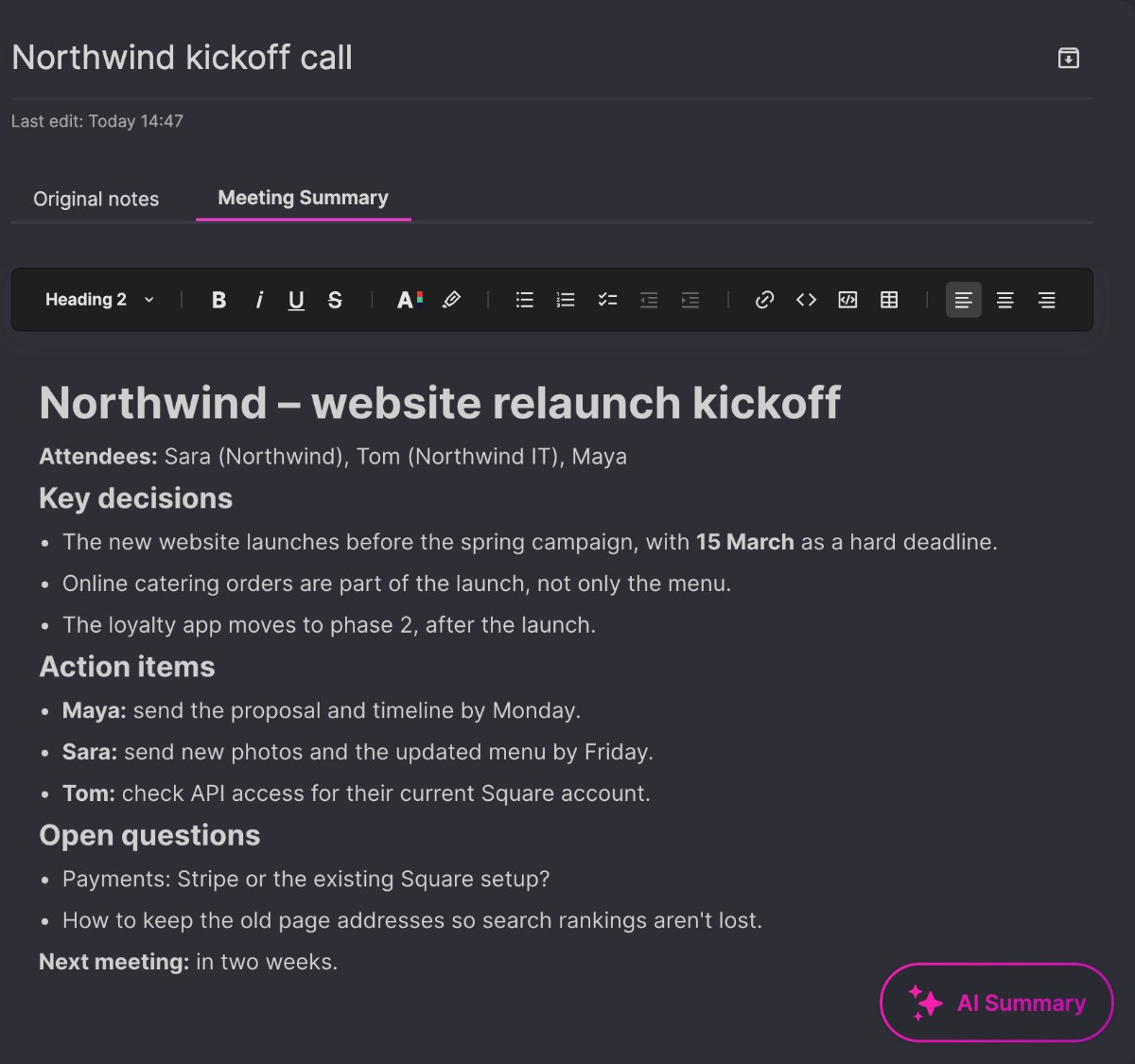
Read it once before you share it. AI is good at structure, but you were in the meeting, so you’re the one who knows whether every date and name is right. Every tab is editable, so fix anything directly.
Step 3: Build on the summary: a follow-up email
Now the useful part. You don’t have to start from the original notes again. Open the Meeting Summary tab, press AI Summary there and choose Follow-up Email. The email is written from the clean summary, so it comes out clearer too.
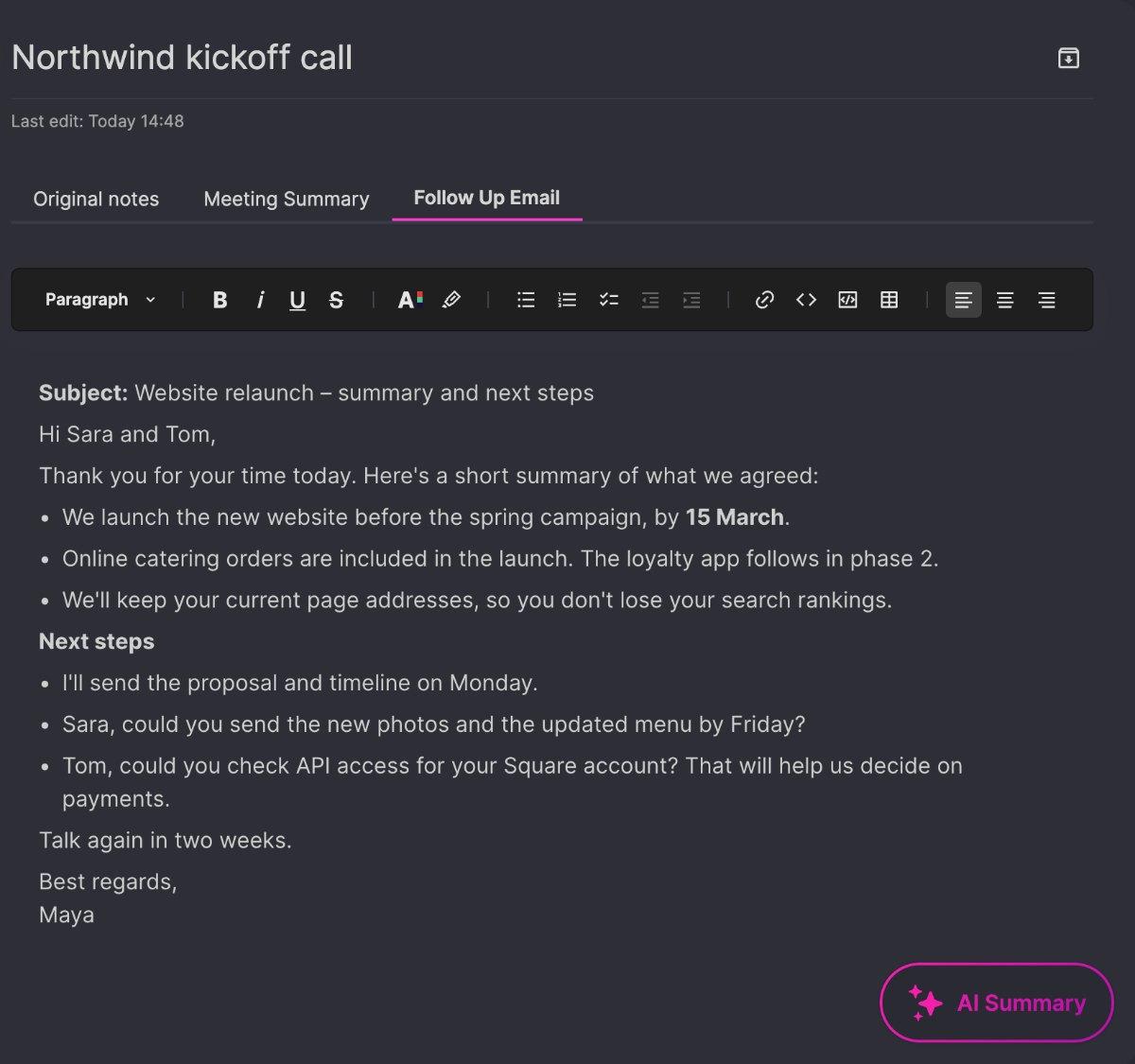
Copy it into your email app, adjust the greeting if you like, and send it while the meeting is still fresh.
Step 4: Ask for anything with your own prompt
Templates cover the common cases. For everything else, type your own request in Custom prompt. For example, from the summary tab: “Turn this into a short Slack update for my team”.
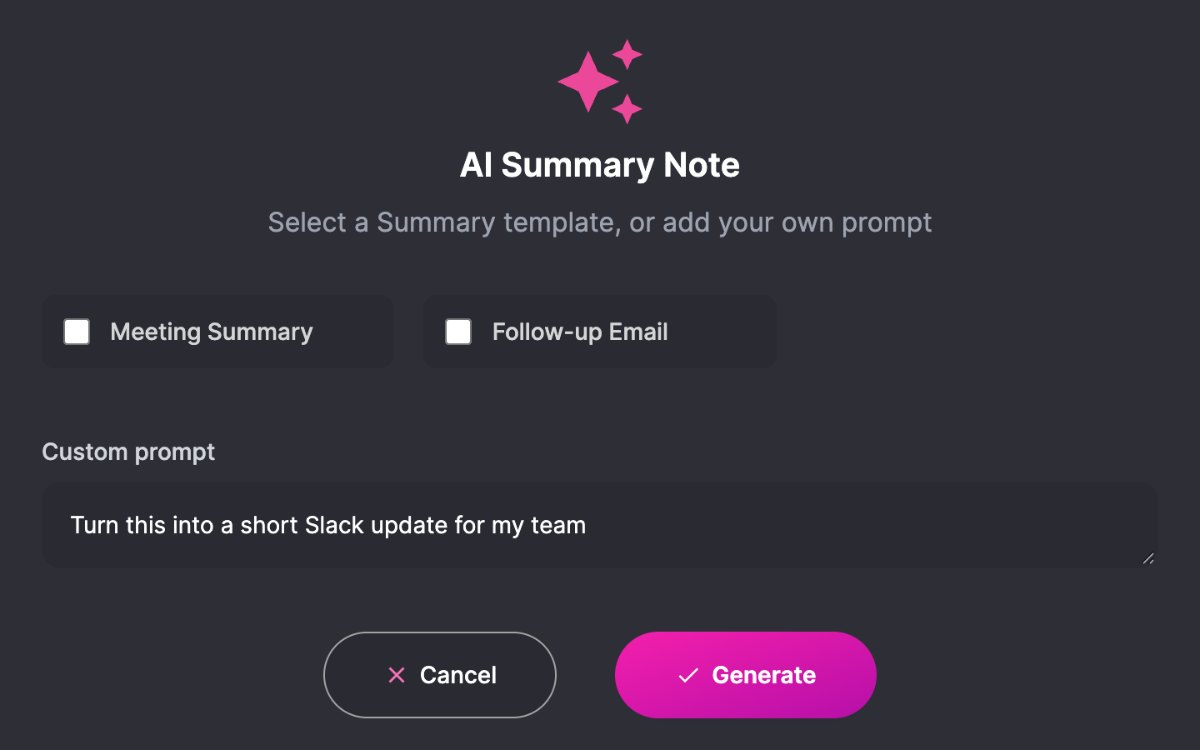
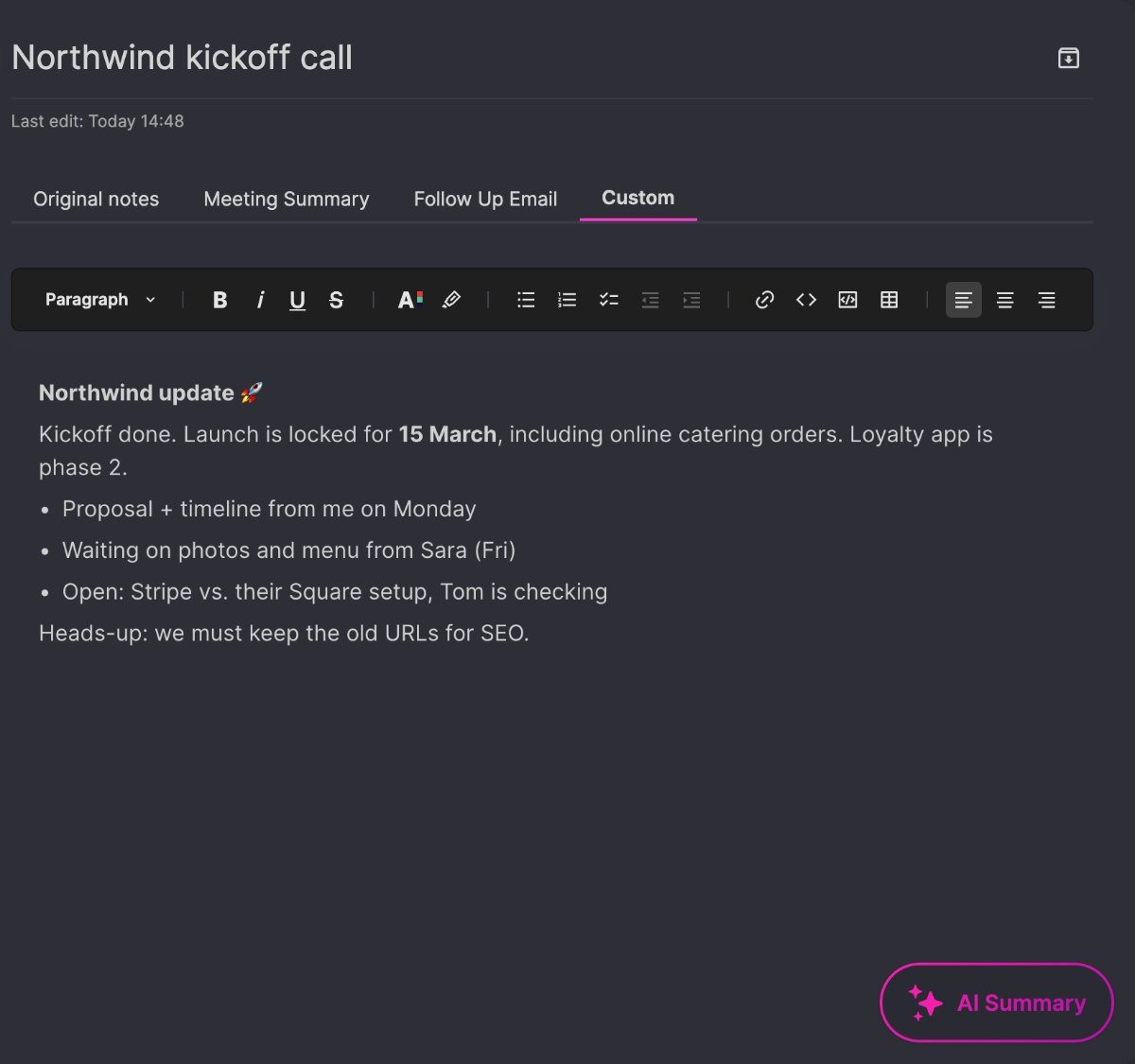
Each result opens in a new tab at the end of the row, so one note can hold the original, the summary, the email and the team update side by side.
Prompts you can copy
Paste any of these into Custom prompt. They work best on the meeting summary tab.
- Turn this into a short Slack update for my team.
- List only the action items as a checklist, with the owner and the deadline.
- List the decisions that were made, one line each.
- Write the questions I should ask in the next meeting.
- Turn this into a Jira ticket with a title, description and acceptance criteria.
- Write a short status report for my manager, in three bullet points.
- Rewrite this for the client: friendly, no internal details.
- Make this shorter: no more than five sentences.
- Translate this into German.
Be specific about the format you want (bullet points, a table, an email, a maximum length). The more precise the prompt, the less editing afterwards.
Keep it private
- Nothing listens to the call. You write the notes. There’s no bot, no audio and no transcript.
- The AI only sees the tab you choose, and only when you press the button. It isn’t used to train AI models.
- Sensitive meeting? Use initials or roles instead of full names in the note you send to the AI.
Questions people ask
Do I lose my original notes?
No. Every result opens in a new tab. Your original notes stay unchanged.
Can I edit the AI results?
Yes. Every tab is a normal note you can edit, format and copy.
Can I make several results from one note?
Yes, as many as you need. Each time you press Generate it uses one AI summary from your plan. Notes + AI includes 1000 AI summaries every month, and the free month includes 50.
Does it work during the call?
Yes. With Float Mode your notes stay in a small window on top of Zoom, Google Meet or Microsoft Teams, so you can write without switching windows. Press AI Summary when the call ends.